
Step-by-Step Guide to Integrate QuickBooks Online
Step-by-Step Guide to Integrate QuickBooks Online

Ensure you have a QuickBooks Online account as QuickBooks Desktop is not supported.
Log into Essential Online Point of Sale in your browser:Hint: You can be on any browser, anywhere in the world to start the process.
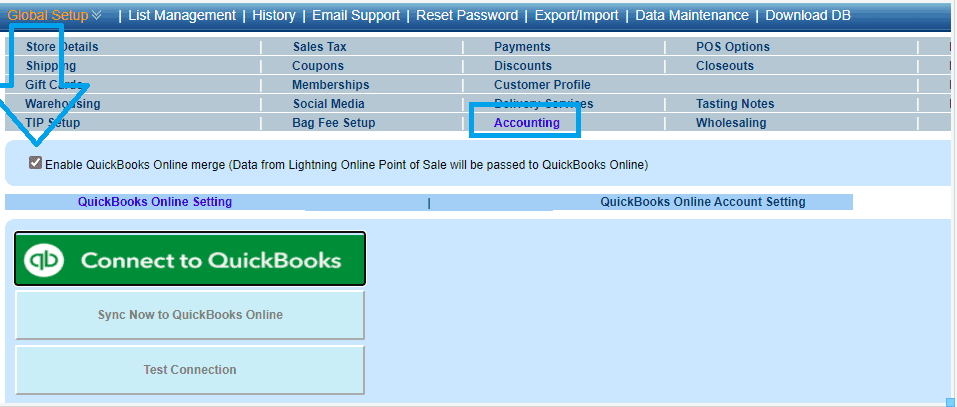
Enable the option as noted below, then click the green 'Connect to QuickBooks' button.
This will redirect to you Intuit's site where you will have to enter your QuickBooks Online credentials.
The browser should then indicate "Connection to QuickBooks Successful!! Close this tab and return to Essential."
Depending on your QuickBooks Online configuration you may first see a screen prompting you to confirm the connection, if so click 'Connect.'
We then recommended clicking 'Test Connection' to re-ensure you are good.
Not required, but recommended: In QuickBooks Online, on the menu on the left please click 'Apps' then on top you will see 'My Apps.' Essential Online POS should be there.
At this point, it is now time to perform the G/L mapping.
In the Essential 'Accounting' tab click the secondary option of 'QuickBooks Online Account Setting.'
Each method of payment, and other assorted fields will require you to select the corresponding G/L account (This data comes from QuickBooks, hence, the data that appears in the drop down will be your QB Online General Ledger accounts.) Any questions on G/L mapping should be directed to your accountant.
Your Essential closing data I.E Close the Day or Close the Shift, sales figures will be automatically inserted into QuickBooks Online approximately 4 AM Eastern Time, every day as a Journal Entry.
If you would like to also merge your accounts payable, please be sure to fill out the 'Purchase' field within the same section 'QuickBooks Online Account Setup' which is toward the bottom of the screen on the left.
Example:
When you receive inventory in Essential, the system has always prompted for an invoice number.
Situation: You received $ 10,050.25 from vendor ABC on invoice #: 90733 today.
At 4 AM, during the QuickBooks Online data synchronization process, you will see this invoice in QuickBooks Online, Vendor as an open invoice.
HINTS
As stated above, your transactions will merge automatically from Essential to QuickBooks Online approximately 4 AM Eastern Time. If you need to merge the data now you can run the synchronization routine yourself. To do so, from the 'Accounting' tab you will see a large rectangular icon 'Sync Now to QuickBooks Online.'
On the Accounts Payable merge, please ensure the vendor name is spelt the same way in Essential and QuickBooks Online.
Examples:
Essential: Empire Wine Merchants QB Online: Empire Wine < This will not work
Essential: ConEdison QB Online: Con Edison < This will also not work
Essential: Acme Distributing QB Online: Acme Distributing < Perfect, this will work
The naming convention must be the same as this is a requirement of QuickBooks Online.